BROWSER CAD
Create and edit CAD
with your AI assistant.
Describe a model in your AI app. FORM builds the geometry in your browser. Inspect the result, adjust exposed dimensions, and ask your assistant to revise or export it.
Sign in, then connect and verify a compatible AI app. Keep FORM open while you model.
 ChatGPT
 Claude
 Gemini
 Cursor
 Cursor
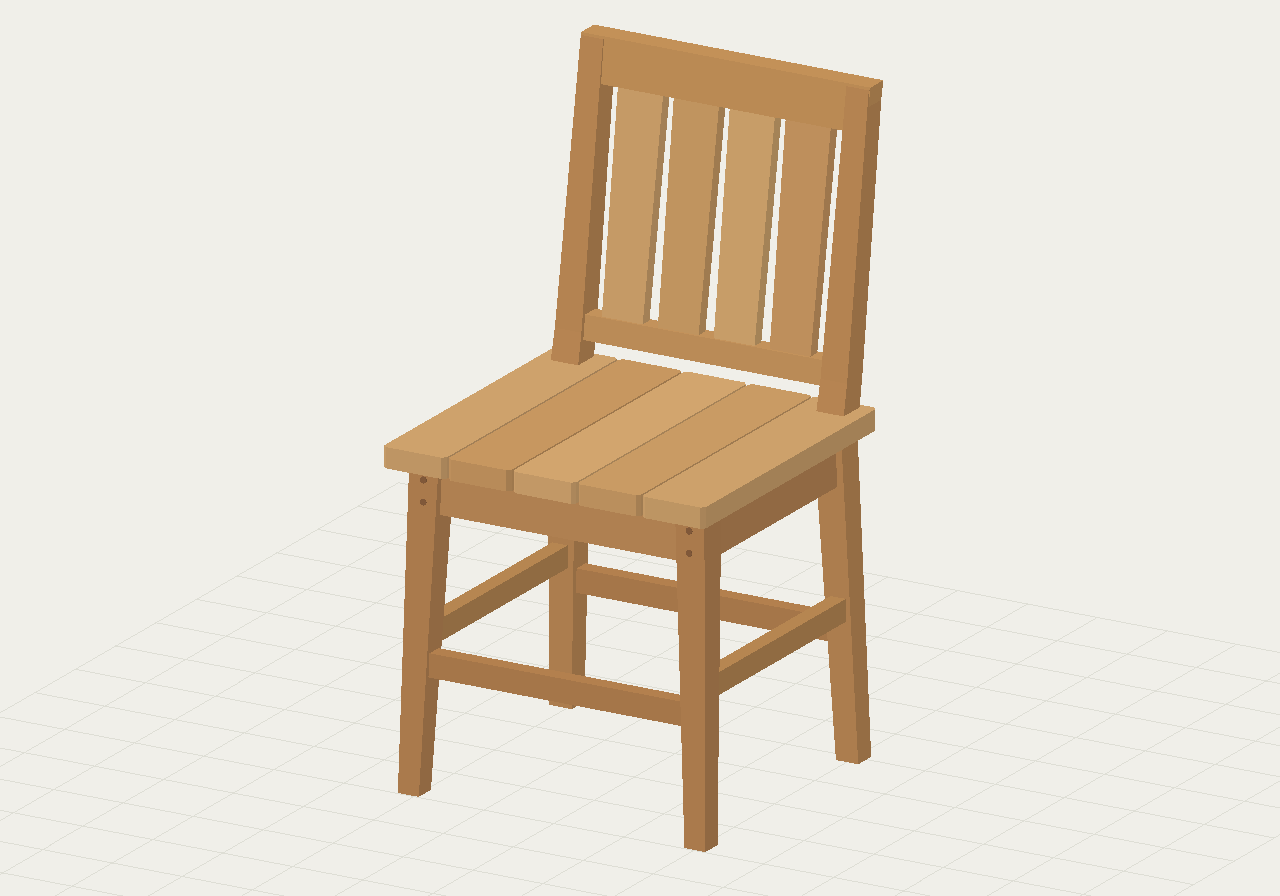
The prompt “Create a 3D model of a wooden chair using Form MCP.” is typed in an external AI app, switching between illustrative ChatGPT, Claude Code, Gemini CLI, and Cursor interfaces. Cursor passes the request to FORM through MCP. FORM then creates a project and builds 29 chair parts. The finished 3D model rotates through several views. This is a scripted, condensed walkthrough using real FORM geometry, not a generation-time benchmark. Connection options depend on the AI client.
CREATE, INSPECT, REVISE
Describe the model.
Inspect it. Ask for a change.
Work in your AI app and keep FORM open beside it. Start with one part, check the dimensions, then add detail.
- 01 / BUILD
Specify the parts and dimensions.
Tell your assistant what to build, which units to use, and what should remain editable.
- 02 / REFINE
Inspect the model and request a change.
Orbit the view and check dimensions. Ask your assistant to change a specific part or measurement.
- 03 / KEEP
Save the source and export a file.
Ask your assistant to save FORM source and export a file for your next tool. Available formats depend on the geometry.
SUGGESTED STARTING POINT
One plate.
One dimension to change.
Starting instructions, not a recorded result. Ask your assistant to inspect each step.
Write a CAD briefFirst prompt
Create an analytic plate 120 mm wide, 80 mm deep, and 5 mm thick in FORM. Name it “Mounting plate.” Inspect its dimensions before adding detail.
Revision
Change only the width to 140 mm. Keep the depth at 80 mm and thickness at 5 mm. Report the new dimensions.
ONE CONNECTION TO START
Connect your AI app
to FORM.
Sign in to FORM and follow the connection guide for your AI app. Authorize FORM, then run the verification prompt. The model viewer opens once your assistant reaches FORM.
One hosted connection to the CAD tools, with every change visible in your open workspace. Geometry runs in your browser; projects and files save to your account.
Which AI clients can I connect?
Use a client that supports remote MCP and FORM’s authentication. The workspace provides client-specific instructions. Official guides include Cursor, Claude Code, or Gemini CLI.
FORM supports an OAuth sign-in flow and an API-key option. Availability depends on your client version and workspace permissions. Read the CAD MCP setup guide.
SETUP, PROMPTS, AND EXPORTS
Set up your assistant.
Build and export a model.
Create editable CAD from a written brief.
Turn a written brief into editable CAD with FORM and your AI assistant. Learn the workflow, supported file formats, and what to check before exporting.
Read the guide 02CONNECT YOUR AGENTConnect your AI assistant to FORM.
Connect an AI assistant to FORM’s hosted CAD MCP endpoint. Set up authentication, inspect a project, and troubleshoot the live browser workflow.
Read the guide 03RHINO WORKFLOWSRhino MCP: choose where your AI should model.
Understand Rhino MCP options, how FORM’s browser CAD workflow differs, and which geometry stays editable when you export a 3DM file to Rhino.
Read the guideBEFORE YOU BEGIN
Before you
start.
Do I need an AI app?
Yes. Use a compatible external AI app for the conversation. FORM provides the CAD tools and browser view; it does not supply a built-in AI assistant.
Check the connection guideDo I need to sign in?
Sign in, connect your AI app, and verify the connection to open the CAD viewer. You can browse Community and adjust published configurable models without signing in. Your connected assistant handles project creation and exports.
Set up your assistantAre my designs public?
New projects have public previews by default. Ask your assistant to make a project private to remove it from Community. Publishing a configurable model separately shares its selected recipe.
Read the privacy detailsWhich files can I export?
Formats depend on the model. Save FORM source for future edits; supported legacy shapes export STL, OBJ, or 3DM. Analytic solids support STEP and mesh exports. Imported STEP bodies support STEP export and bounded edits. Check the representation before using a file in another tool.
Check the 3DM handoffFILES YOU CAN KEEP
Save the source.
Check the export.
Ask your assistant to check which format your model supports before exporting.
- FORM source
- Keep the editable document. Imported STEP projects also require their source assets.
- STL / OBJ
- Mesh exports for supported geometry. Check the result in your next tool.
- Rhino 3DM
- Supported legacy shapes export as native CAD geometry or mesh fallbacks. Analytic and imported STEP bodies do not support this route.
- STEP
- Supported analytic solids and imported STEP bodies can export STEP. Imported edits are bounded; this is not general solid editing.
HELP AND FEEDBACK
Need help
with FORM?
Tell us what you’re trying to model, which AI app you use, and where you’re stuck. You can also send feedback or a partnership inquiry.
YOUR FIRST MODEL
Start your first
CAD model.
Start a CAD project Sign in, connect your AI assistant, and begin with one part and a few dimensions.